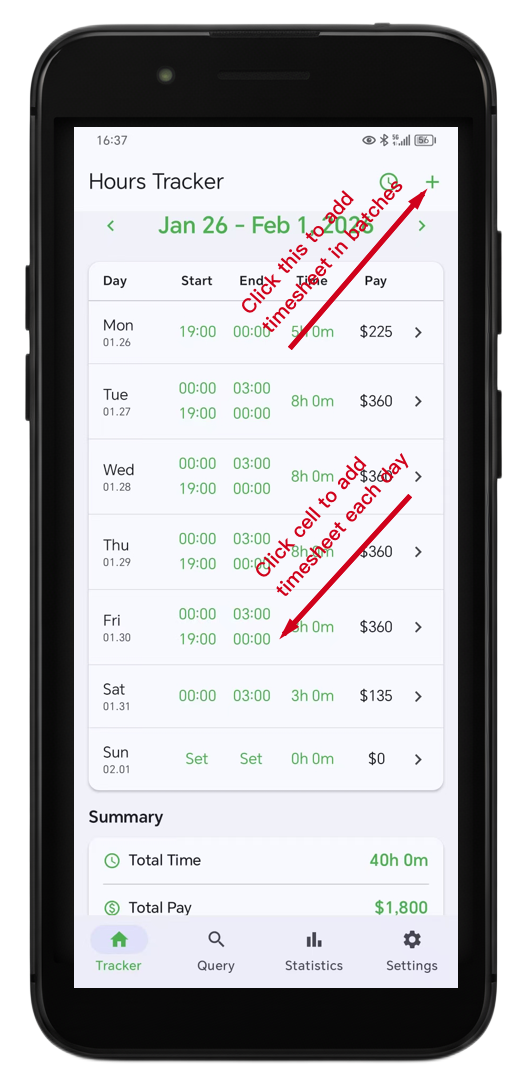
Welcome to Hours Tracker! This guide will walk you through the core features and show you how to customize the app to fit your specific workflow.
Part 1: Effortless Time Tracking
At the heart of Hours Tracker is the ability to log your work quickly and accurately. Here is how to make the most of the main features.
1. Adding a Time Period
Logging your hours is simple. Tap the add button to create a new entry. You can define the start time and end time with precision.
Screenshot of the "Add Time" or "Edit Time" dialog showing Start/End time pickers
2. Night Shifts? No Problem (Midnight Crossing)
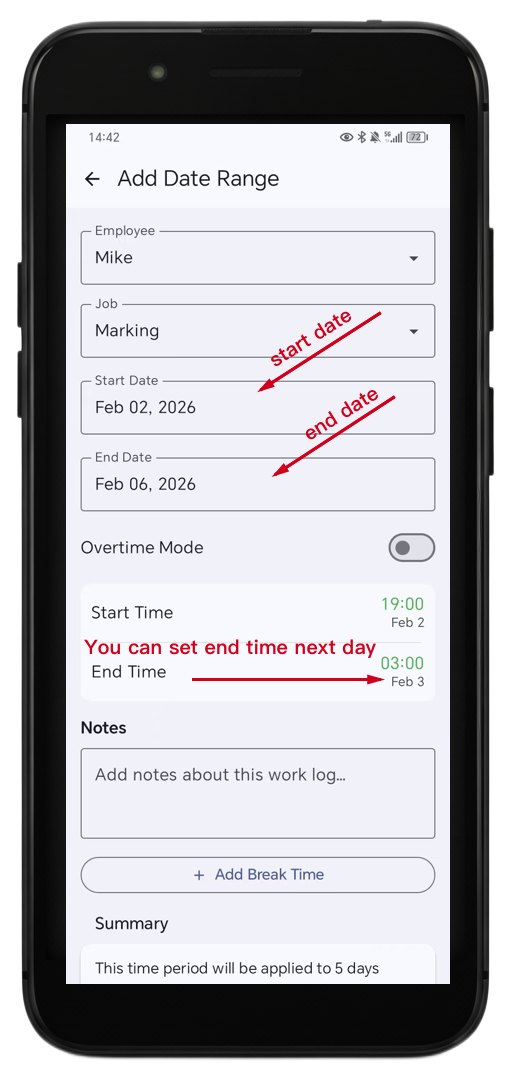
Do you work shifts that start at night and end the next morning? Hours Tracker automatically handles time periods that cross midnight. You don't need to create two separate entries for one shift—just set your start time (e.g., 10:00 PM) and your end time (e.g., 6:00 AM), and the app calculates the duration correctly.
3. Bulk Add for Efficiency
If you work the same hours for several days in a row, you don't need to log them one by one. Use the Bulk Add feature to select multiple dates and apply the same time block to all of them instantly.
Screenshot of the Calendar or Bulk Add interface showing multiple dates selected
4. Adding Notes
Need to remember what you worked on? You can add specific Notes to any time period. This is perfect for detailing specific tasks, recording break times, or noting project numbers.
Part 2: Customizing Your Experience (Settings)
Hours Tracker is highly customizable. Head over to the Settings tab to tailor the app to your needs. Here is a breakdown of what you can configure.
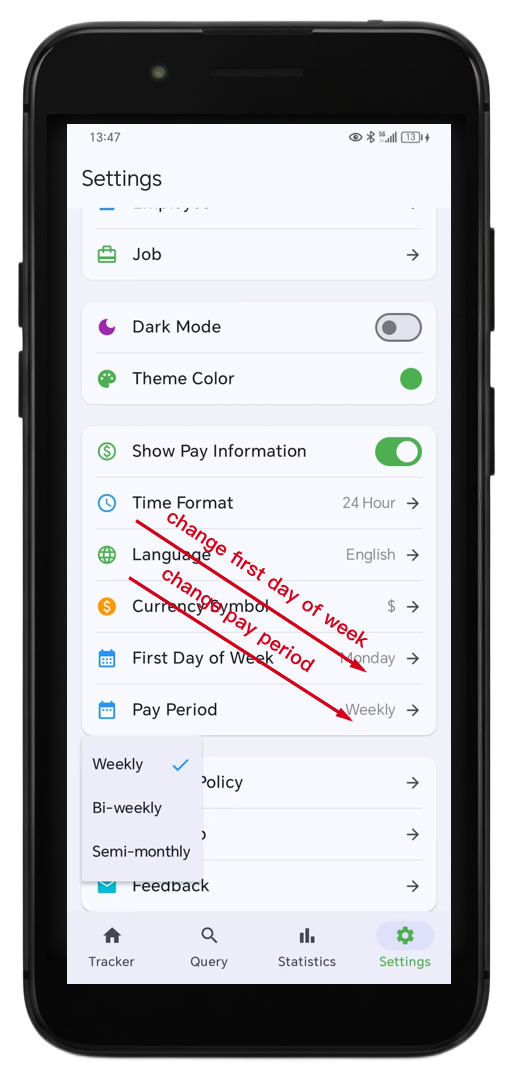
Screenshot of the main Settings screen
1. Organize Your Work: Employees & Jobs
If you juggle multiple clients or manage a team, use the Manager section.
- Jobs: Create different profiles for different clients or project types.
- Employees: If you are tracking time for others, you can manage their profiles here.
Screenshot of the Job or Employee list screen
2. Visual Personalization
Make the app look the way you want it to.
- Theme Color: Choose from a variety of accent colors to match your style.
- Dark Mode: Switch to Dark Mode to reduce eye strain, especially during those late-night shifts.
Split screenshot showing the app in Light Mode vs. Dark Mode
3. Display & Payroll Settings
Ensure your reports and views match your local standards.
- Show Pay Information: Toggle this on to see your estimated earnings calculated directly alongside your hours.
- Time Format: Choose between 12-hour (AM/PM) or 24-hour military time.
- Currency Symbol: Set your preferred currency ($, €, £, etc.) for accurate pay estimates.
- Language: The app supports multiple languages including English, Spanish, French, Chinese, and more.
4. Pay Period Configuration
To get accurate totals for your paychecks, configure your calendar settings:
- First Day of Week: Set whether your week starts on Sunday or Monday.
- Pay Period Type: Select how often you get paid (Weekly, Bi-weekly, Monthly, etc.) so your summaries align with your actual payroll cycle.
We Value Your Feedback!
We are constantly improving Hours Tracker. If you enjoy the app, please consider rating us on the store. If you have suggestions or run into issues, use the Feedback button in the Settings menu to email us directly.
Screenshot of the "About" section in settings showing the Rate and Feedback buttons
Happy Tracking!